Windows 11 Home to Windows 11 Pro – Upgrade License Key
$56.99Original price was: $56.99.$18.99Current price is: $18.99.
-67%
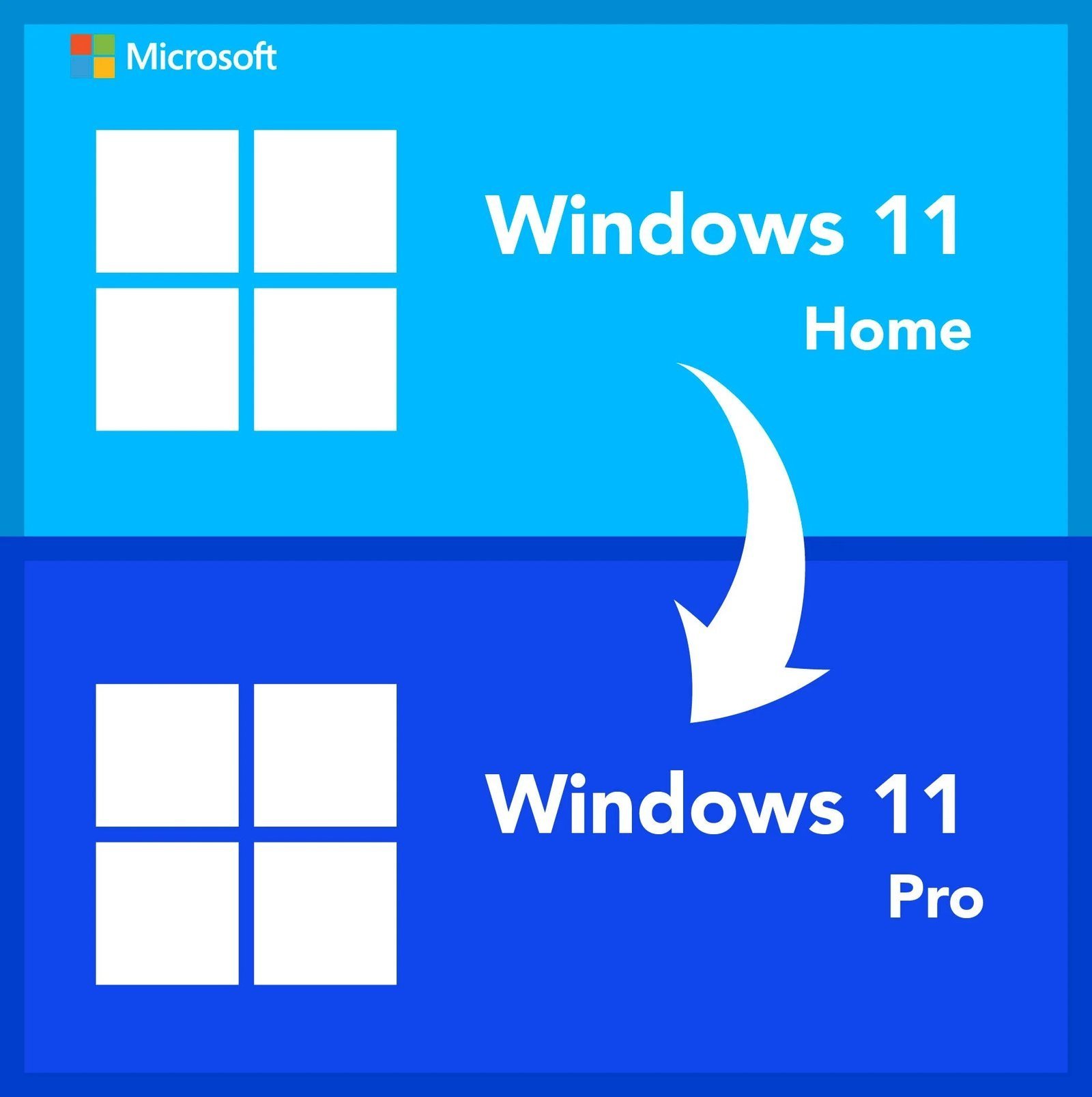
Upgrade Windows 11 Home to Pro on 1 PC without reinstalling: enter the key under Change product key and Windows switches edition, keeping your files and apps. Emailed within minutes, 30-day money-back guarantee.
This upgrade key lets you upgrade Windows 11 Home to Pro on one PC that already runs genuine, activated Windows 11 Home. It is made for laptop and desktop owners whose machine shipped with Home and who now need BitLocker encryption, Remote Desktop hosting, Hyper-V, Group Policy or a domain join for work. The edition changes in place through Settings > System > Activation > Change product key, with your documents, settings and programs left exactly where they are.
License details
Edition: upgrade from Microsoft Windows 11 Home to Microsoft Windows 11 Pro (current release)
Platform: 64-bit Windows 11; the PC must already be running activated Windows 11 Home
Coverage: 1 PC (one edition upgrade)
License term: perpetual, one-time purchase, no subscription; the resulting Pro license does not expire
Activation: online in Settings > System > Activation > Change product key; phone activation help from our team if Microsoft requests it
Delivered: the 25-character upgrade key and a step-by-step guide by email, also saved under My Account (no reinstall media required)
Language: keeps the language already installed on your Windows 11 Home PC; Pro is multilanguage
Support and guarantee: a person answers email 7 days a week; 30-day money-back guarantee
Pay once, receive the key within minutes and have Windows 11 Pro running after a single restart. No downloads to burn, no backups to restore, nothing shipped. If the upgrade cannot be completed and our team cannot fix it, we replace the key or refund the order within 30 days. The license type is shown in the Product Overview table on this page.
Product overview
Product
Windows 11 Home to Windows 11 Pro – Upgrade License Key
Brand
Microsoft
Category
Operating Systems, Windows 11
Platform
Windows PC
Covers
See product title
License term
One-time purchase, no subscription
Delivery
Digital, product key by email within minutes
You receive
Product key, official Microsoft download link, installation guide
Support
Free installation and activation help by email, 7 days a week
Guarantee
30-day money-back guarantee
SKU
SIS-W11-UPG
Upgrade Windows 11 Home to Pro without reinstalling
Most laptops and prebuilt desktops sold in the US come with Windows 11 Home. That is fine until the day you need to encrypt the drive with BitLocker, let a colleague connect through Remote Desktop, spin up a Hyper-V virtual machine or join the PC to your company's domain. At that point you have two choices: wipe the machine and install Windows 11 Pro from scratch, or upgrade Windows 11 Home to Pro in place with an upgrade key. This product is the second option.
The upgrade works through a feature Microsoft built into Windows itself. Under Settings, System, Activation, the Change product key button accepts a Pro key on a Home installation. Windows verifies it, downloads the Pro components, restarts once and comes back as Windows 11 Pro with every file, setting and program intact. There is no installation media to create and no reactivation of Office or other software. Our email gives you the key and a short guide; the whole job usually fits inside a coffee break.
Who this upgrade key is for
Remote employees whose employer requires BitLocker or domain join on a personally owned laptop
Freelancers and consultants who need Remote Desktop hosting to reach their office PC from the road
Developers who want Hyper-V and Windows Sandbox on a machine that shipped with Home
Home users who bought a Home laptop and now want Group Policy or Windows Update for Business controls
Anyone who prefers to keep a working, configured Windows install rather than start over
If your PC does not yet have an activated copy of Windows, or you are building a new machine, you need a full license rather than an upgrade. In that case choose our Windows 11 Pro key for 1 PC. If the PC is on Windows 10 Home, the equivalent product is our Windows 10 Pro upgrade key, linked under Related products below.
Signs that it is time to upgrade Windows 11 Home to Pro
You probably need Pro if any of these sound familiar. Your employer's IT department asked you to turn on BitLocker and you cannot find it. You tried to connect to your desktop from a laptop and Windows said Remote Desktop hosting is not available in this edition. A tutorial for a virtual machine told you to enable Hyper-V and the option was missing. You wanted to delay a feature update or change a privacy default and there was no Group Policy editor. Or you simply want to join a work domain. Each of those is a Pro-only capability, and each is switched on the moment you upgrade Windows 11 Home to Pro with this key.
What changes when Home becomes Pro
The Windows 11 Home vs Pro difference is entirely about management, security and hardware limits. The table lists what the upgrade key switches on. Everything you already have in Home stays.
Capability
Before: Windows 11 Home
After: Windows 11 Pro
BitLocker drive encryption with management
Device encryption only on some hardware
Full BitLocker and BitLocker To Go
Remote Desktop
Connect out only
Connect out and accept incoming connections
Hyper-V and Windows Sandbox
Not available
Available
Domain and Microsoft Entra ID join
Not available
Available, with Group Policy and MDM
Windows Update for Business, Assigned Access
Not available
Available
Maximum RAM / physical CPUs
128 GB / 1
2 TB / 2
Your files, apps and settings
In place
Unchanged after the upgrade
How the upgrade works, step by step
Open Settings, then System, then Activation. Next to Upgrade your edition of Windows, select Change product key and type the 25-character key from your email. Windows contacts Microsoft's activation servers, confirms the key is a genuine Pro key, and shows an Upgrade your edition prompt. Select Start. Windows downloads the Pro components, applies them and restarts once. When the desktop returns, the Activation page reads Windows 11 Pro and shows an activated status. That is the whole procedure to upgrade Windows 11 Home to Pro; the Download and Install tab on this page repeats it with exact menu paths for reference during the process.
Before you start: requirements
Because this key upgrades an existing installation, the requirements are about the current state of the PC rather than raw hardware. Windows 11 Home already running means the machine has passed the TPM 2.0, UEFI Secure Boot, 4 GB RAM and 64 GB storage checks.
The PC must run Windows 11 Home (not Windows 10 Home, and not an N or S mode edition; leave S mode first if it is enabled)
Windows 11 Home must already be activated; check under Settings, System, Activation
An internet connection during the upgrade so Windows can verify the key and fetch Pro components
Administrator access to the PC and a few minutes for one restart
Recommended: Windows Update fully applied and a recent backup, as good practice before any edition change
What the upgrade does not change
The edition change leaves the rest of the PC alone. Manufacturer drivers, the recovery partition and the warranty status of a Dell, HP, Lenovo or ASUS laptop are untouched. Installed software, including Office, Adobe apps and games, keeps its activation. Your Windows Hello PIN, saved Wi-Fi networks and browser sessions remain. The Windows 11 version number stays the same; you are changing edition, not release. Performance does not change either, since Home and Pro share the same kernel and scheduler. What you gain is a set of switches that were greyed out or absent before, now available under Settings and in the Windows Features dialog.
Licensing explained
After the upgrade the PC holds a perpetual Windows 11 Pro license. It is a one-time purchase with no subscription and no renewal. Signing in with a Microsoft account after the upgrade stores the new Pro digital license with that account, which lets you reinstall Windows 11 Pro on the same PC later without entering the key again.
What about the original Home license
The Home license that came with the PC is superseded by the Pro activation on that machine. If the original Home license was OEM, it remains bound to that hardware. The upgrade covers one PC; a second Home laptop needs a second upgrade key. Whether the resulting Pro license can move to another computer depends on the license type, which is stated in the Product Overview table on this page. Our FAQ describes retail, OEM and volume transfer rules in plain language.
Upgrade key or full Pro key
Both end with Windows 11 Pro on your PC. The upgrade key is designed for machines that already run activated Home. The full key also covers clean installs and unlicensed PCs. If you plan to reformat the drive and start fresh anyway, a full Windows 11 Pro product key is the more flexible choice.
Do gamers and home users need to upgrade Windows 11 Home to Pro
Usually not. Games, streaming, photo editing and web apps run identically on Home and Pro; frame rates, DirectX 12 features and hardware support up to 128 GB of RAM are the same. The upgrade is worth it for a home user in a few specific cases: you want BitLocker on a laptop that leaves the house, you want to reach your gaming PC from work through Remote Desktop, or you run virtual machines for tinkering. If none of those apply, keep Home and spend the money elsewhere. We would rather tell you that than sell an upgrade you will not use.
Why buy the Windows 11 Home to Pro upgrade from Software in Store
We are an independent US reseller, MAKERS UNITY LLC of Sheridan, Wyoming, selling genuine Microsoft keys with real support. Edition upgrades are one of the products where buyers most often hit a question mid-process, so we built our service around answering quickly.
Key and guide by email within minutes of payment, seven days a week, and saved under My Account
Written step-by-step instructions for the Change product key path, so you know what each screen should show
A person on support email every day of the week, including phone activation with Installation and Confirmation IDs
30-day money-back guarantee: if the upgrade key cannot be activated and we cannot fix it, replacement or full refund
Encrypted, PCI-compliant checkout with card, Apple Pay and Google Pay
If the process pauses or Windows shows an unexpected message, you can reach the same team that wrote the guide.
Order the upgrade key, open Settings, System, Activation, choose Change product key and paste the 25 characters. One restart later your PC runs Windows 11 Pro. Our how it works page covers delivery and activation in detail, and the FAQ answers the common questions about upgrades, transfers and refunds.
Download and install
The delivery email arrives within minutes of payment with your 25-character Windows 11 Pro upgrade key and this guide. You do not need installation media; the upgrade happens inside your existing Windows 11 Home installation.
Confirm the PC runs activated Windows 11 Home under Settings > System > Activation. If S mode is enabled, switch out of S mode first.
Save your work, connect to the internet and run Windows Update if updates are pending.
In Settings > System > Activation, select Change product key (or Change next to Upgrade your edition of Windows).
Type the 25-character upgrade key and select Next, then Start.
Windows verifies the key and downloads the Pro components. Do not turn the PC off. It restarts once during the upgrade.
After the restart, return to Settings > System > Activation. The edition should read Windows 11 Pro and the status Windows is activated.
Sign in with a Microsoft account so the Pro digital license is stored for future reinstalls.
If the upgrade stalls or Windows asks for phone activation, reply to your order email with the error code or the Installation ID and we will send the Confirmation ID and next steps. Support is answered by a person seven days a week.
Frequently asked questions
Will I lose my files, programs or settings when I upgrade Windows 11 Home to Pro?
No. The upgrade is an edition change inside your existing installation, not a reinstall. Documents, photos, installed programs, browser profiles, Wi-Fi passwords and personalization all stay in place. Windows downloads the Pro components, restarts once and returns to the same desktop with the Pro features switched on. We still recommend a backup before any system change as a matter of good practice, but the upgrade itself is designed to preserve everything.
How long does it take to upgrade Windows 11 Home to Pro?
For most PCs the process is short: a few minutes for Windows to verify the key and download the Pro components, one restart, and a couple of minutes to finish configuring. A slow internet connection or an older drive can stretch it. Keep the PC plugged in and do not power it off during the restart. When it is done, Settings, System, Activation shows Windows 11 Pro and an activated status.
What is the difference between this upgrade key and a full Windows 11 Pro key?
Both keys switch a PC to Windows 11 Pro. The upgrade key is meant for a PC that already runs genuine, activated Windows 11 Home, and is used through Change product key. The full Windows 11 Pro key can do the same on a Home PC and can also activate a clean installation on a PC with no license, such as a new build. If your PC is unactivated, or you plan to wipe it, buy the full key instead.
My laptop came with OEM Windows 11 Home. Does the upgrade work on it?
Yes. Preinstalled OEM Home is the most common starting point when customers upgrade Windows 11 Home to Pro. Enter the key under Settings, System, Activation, Change product key, and the laptop moves to Windows 11 Pro while keeping the manufacturer's drivers and software. The original OEM Home license stays associated with that hardware. Whether the resulting Pro license can later move to another machine depends on the license type shown in the Product Overview table on this page.
Can I use this key on a Windows 10 Home PC or on Windows 11 Home N?
No. This key is specifically for upgrading Windows 11 Home to Windows 11 Pro. For Windows 10 Home we sell a separate Upgrade to Windows 10 Pro key, or you can first move the PC to Windows 11 Home if the hardware meets the requirements. N editions are a separate product family, so Home N would require Pro N media and a Pro N key rather than this upgrade. If you are not sure which edition you have, check Settings, System, About before ordering.
What if the upgrade fails or the key is rejected? Is there a refund?
Contact us first; most rejections have a simple cause such as S mode still being enabled, no internet connection, or the PC not yet activated on Home. Send us the exact message or error code by replying to your order email, and a person on our team will help seven days a week, including phone activation if Microsoft asks for it. If the key cannot be used to complete the upgrade and we cannot fix it, our 30-day money-back guarantee gives you a replacement key or a full refund.
15 reviews for Windows 11 Home to Windows 11 Pro – Upgrade License Key
Rated 4 out of 5
Alexander Lewis –
Windows 11 Pro upgrade went smoothly. Really happy with the new interface.
Rated 5 out of 5
Eric Wright –
Windows 11 Pro installation was smooth and activation worked immediately.
Rated 4 out of 5
Brian Baker –
Very happy , thank you SIS
Rated 5 out of 5
Abigail Brooks –
The upgrade process was smooth. Windows 11 Pro features are now fully available, and the key worked perfectly. Easy to follow instructions, although I had to restart a couple of times.
Rated 5 out of 5
Logan Perry –
Simple and fast upgrade. Entered the key, restarted, and everything worked perfectly. Highly recommend for anyone needing Pro features
Rated 4 out of 5
Madison Jenkins –
Key worked flawlessly for the upgrade; excellent guidance from support.
Rated 5 out of 5
Elijah Reed –
Smooth upgrade process. Key worked immediately, and all Pro features are available.
Rated 5 out of 5
Ariana Powell –
Upgrade took just minutes. My PC is now running Pro smoothly.
Rated 5 out of 5
Cole Richardson –
Super easy upgrade. Took just a few minutes to activate.
Rated 5 out of 5
Hailey Parker –
Upgrade was super easy. Entered the key and within minutes my PC was running Windows 11 Pro.
Rated 4 out of 5
Nicholas Howard –
Upgrade process was simple, and I now have Pro features I needed. Took a few minutes to activate, but worth it.
Rated 5 out of 5
Robert Foster –
The upgrade process was smooth and quick.
Rated 5 out of 5
Bella Bailey –
Upgrade was seamless, and all my settings carried over perfectly. Very happy with the quick delivery of the key.
Rated 5 out of 5
Chloe Bennett –
The upgrade process was a bit tricky at first, but customer support helped resolve it. Works fine now.
Rated 5 out of 5
Edward Parker –
Flawless upgrade! Entered the key and within minutes my system switched to Pro. Very happy with the purchase


Alexander Lewis –
Windows 11 Pro upgrade went smoothly. Really happy with the new interface.
Eric Wright –
Windows 11 Pro installation was smooth and activation worked immediately.
Brian Baker –
Very happy , thank you SIS
Abigail Brooks –
The upgrade process was smooth. Windows 11 Pro features are now fully available, and the key worked perfectly. Easy to follow instructions, although I had to restart a couple of times.
Logan Perry –
Simple and fast upgrade. Entered the key, restarted, and everything worked perfectly. Highly recommend for anyone needing Pro features
Madison Jenkins –
Key worked flawlessly for the upgrade; excellent guidance from support.
Elijah Reed –
Smooth upgrade process. Key worked immediately, and all Pro features are available.
Ariana Powell –
Upgrade took just minutes. My PC is now running Pro smoothly.
Cole Richardson –
Super easy upgrade. Took just a few minutes to activate.
Hailey Parker –
Upgrade was super easy. Entered the key and within minutes my PC was running Windows 11 Pro.
Nicholas Howard –
Upgrade process was simple, and I now have Pro features I needed. Took a few minutes to activate, but worth it.
Robert Foster –
The upgrade process was smooth and quick.
Bella Bailey –
Upgrade was seamless, and all my settings carried over perfectly. Very happy with the quick delivery of the key.
Chloe Bennett –
The upgrade process was a bit tricky at first, but customer support helped resolve it. Works fine now.
Edward Parker –
Flawless upgrade! Entered the key and within minutes my system switched to Pro. Very happy with the purchase