Microsoft Office 2021 Professional Plus: How to Download, Install, and Activate (Complete Guide)
Microsoft Office 2021 Professional Plus: How to Download, Install, and Activate (Complete Guide)
Microsoft Office 2021 Professional Plus is the latest all-in-one productivity suite, including Word, Excel, PowerPoint, Outlook, and more. In this guide, we’ll show you how to quickly download, install, and activate Office 2021 Pro Plus for a smooth setup.
Step 1: Check System Requirements
Before you begin, make sure your computer meets the minimum requirements for Office 2021 Pro Plus:
- Operating System: Windows 10 or Windows 11 (32/64-bit)
- Processor: 1.6 GHz or faster, 2-core processor
- Memory: 4 GB RAM (64-bit), 2 GB RAM (32-bit)
- Hard Disk: 4 GB of available space
- Display: 1280 x 768 resolution
- Internet: Required for downloading and activating
Ensuring your PC is compatible will help you avoid installation or activation issues later.
Step 2: Download the Office 2021 Installation Setup
Microsoft provides the official installation files directly from their website. To get started:
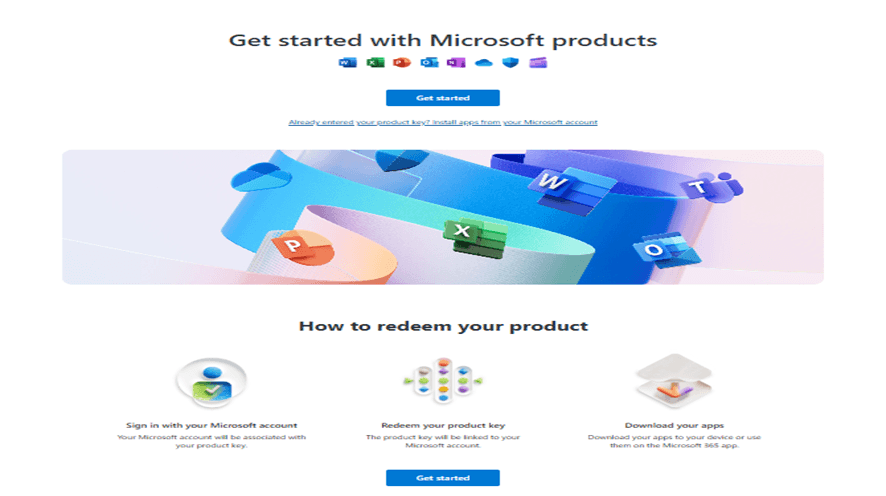
Go to https://setup.office.com/
Sign in with your Microsoft account (or create one if you don’t have it).
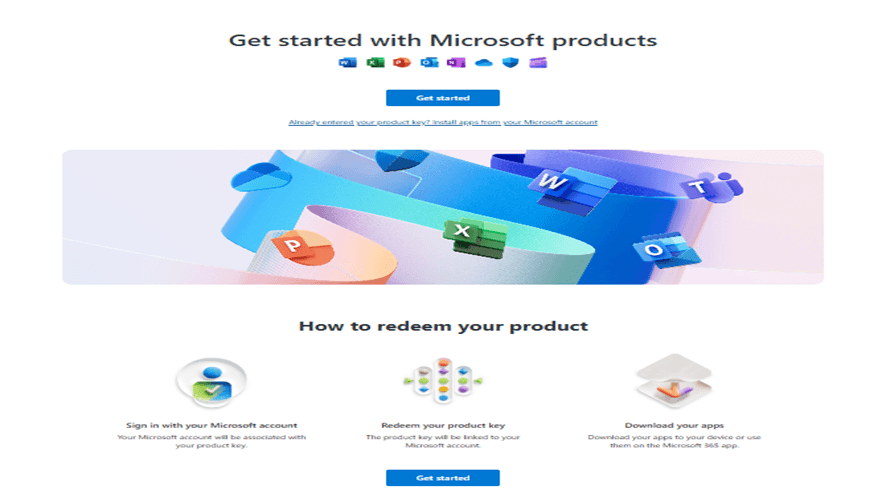
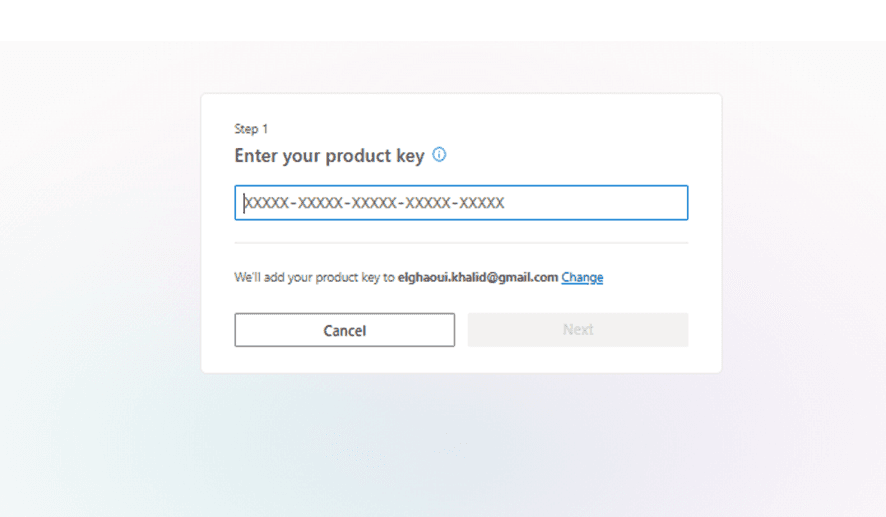
Enter your valid Office 2021 Professional Plus product key.
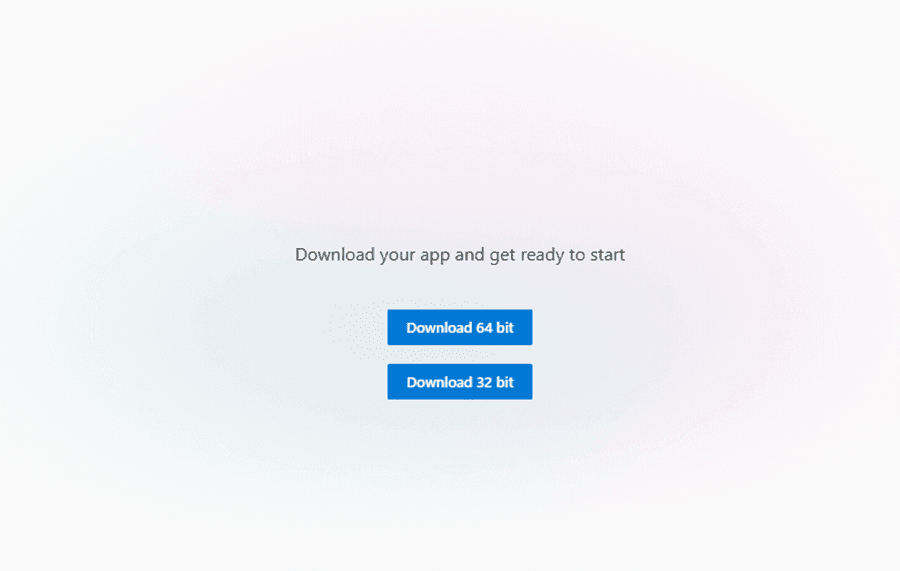
Follow the prompts to download the setup file.
You will need a product key to proceed with the download.
If you don’t already have one, you can purchase a genuine Office 2021 Professional Plus Lifetime License Key (1 PC) here:
Buy Office 2021 Pro Plus License Key – Lifetime for 1 PC
This ensures you’re downloading a safe, up-to-date copy directly from Microsoft and can activate it without issues.
Step 3: Install Office 2021 Pro Plus
Once the download is complete:
Locate the downloaded setup.exe file.
Double-click the file to start installation.
Follow the on-screen instructions and choose the apps you want to install.
Wait for the installation to finish (this may take several minutes).
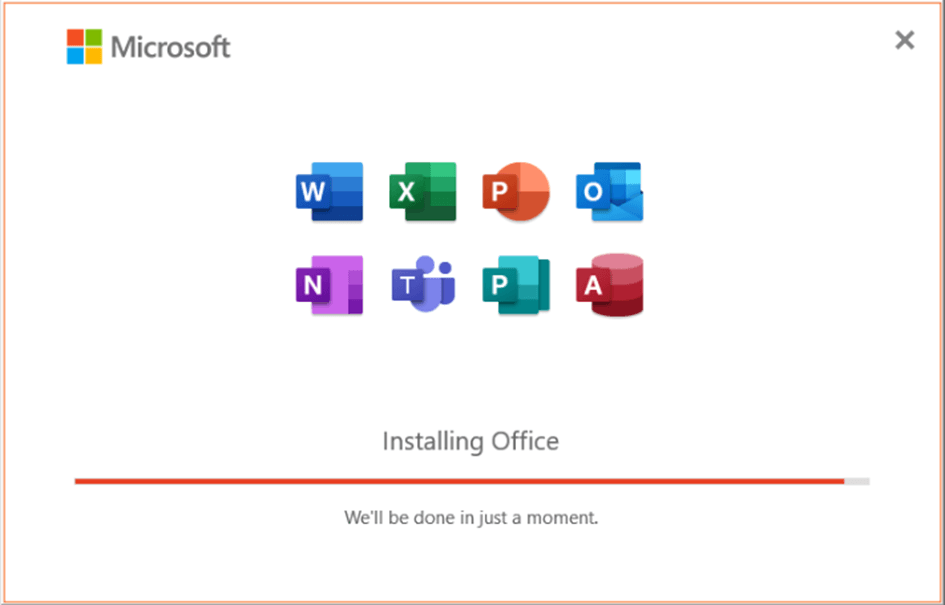
When done, you’ll find your Office apps like Word, Excel, and PowerPoint ready to use from your Start Menu.
Step 4: Activate Office 2021 Pro Plus
Activation is the most important step to unlock all features. Here’s how:
Open any Office app (e.g., Word).
When prompted, enter your product key.
If you're not prompted, go to:
- File > Account > Activate Product
- Choose “Activate via Internet” when given the option.
- Once verified, you’ll see a message confirming successful activation.
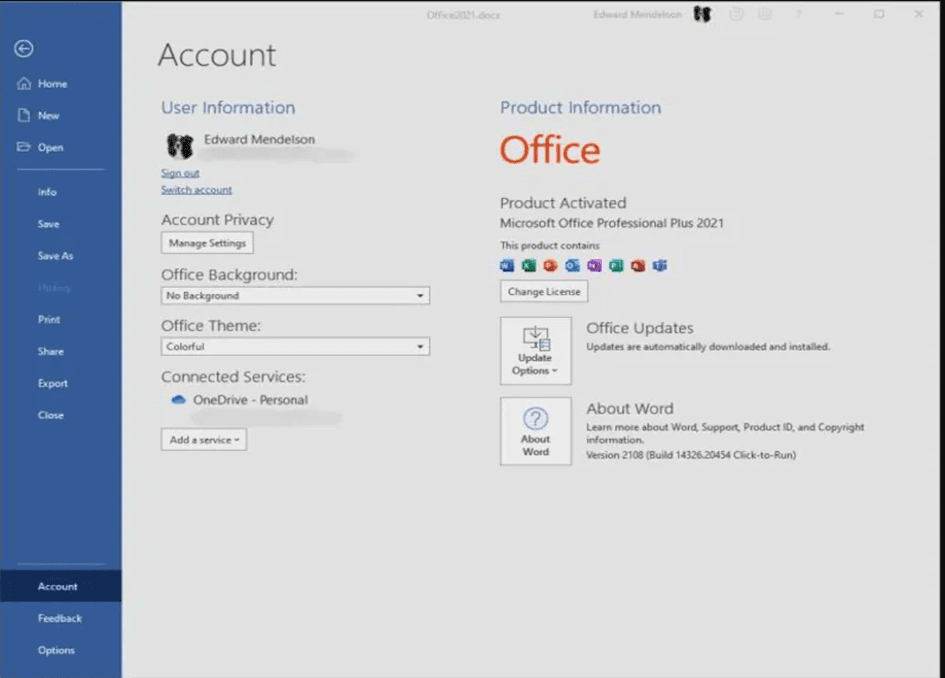
If activation is successful, your Office 2021 Pro Plus will be fully licensed and ready to use for life.
Get Your Office 2021 Pro Plus License Today
Microsoft Office 2021 Professional Plus gives you lifetime access to the latest productivity tools without monthly subscription fees. Perfect for both personal and professional use, it’s the smart choice for anyone who wants premium Office apps at the best price.
Click here to get your Microsoft Office 2021 Professional Plus Lifetime License Key for 1 PC
Why Choose a Lifetime License?
Unlike Microsoft 365, which requires monthly or yearly payments, Office 2021 Professional Plus gives you a one-time purchase — no subscriptions, no recurring fees, just lifetime access to all features.