How to Take a Screenshot on Windows 11 — 5 Easy Methods (2026)
How to Take a Screenshot on Windows 11 — 5 Easy Methods (2026)
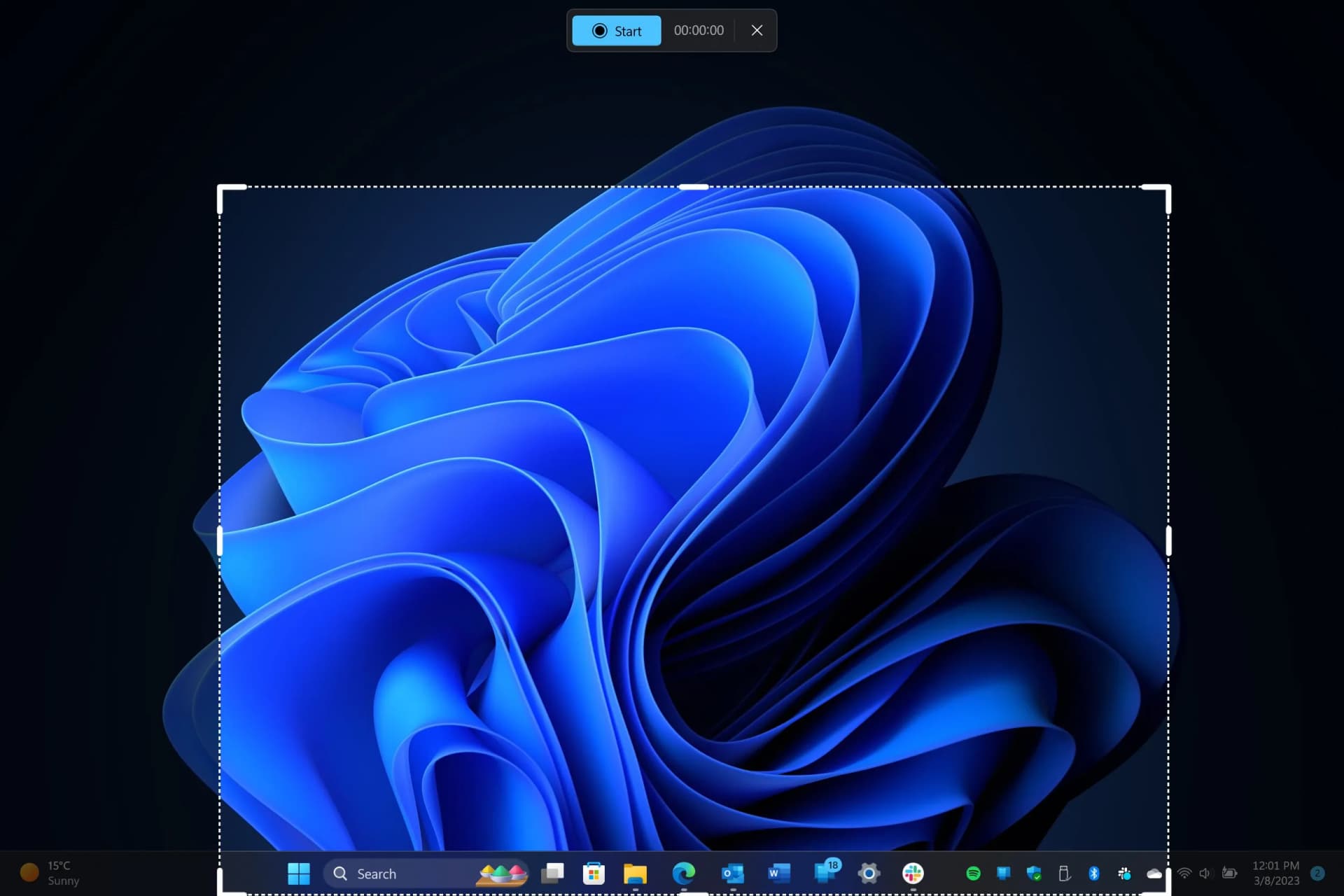
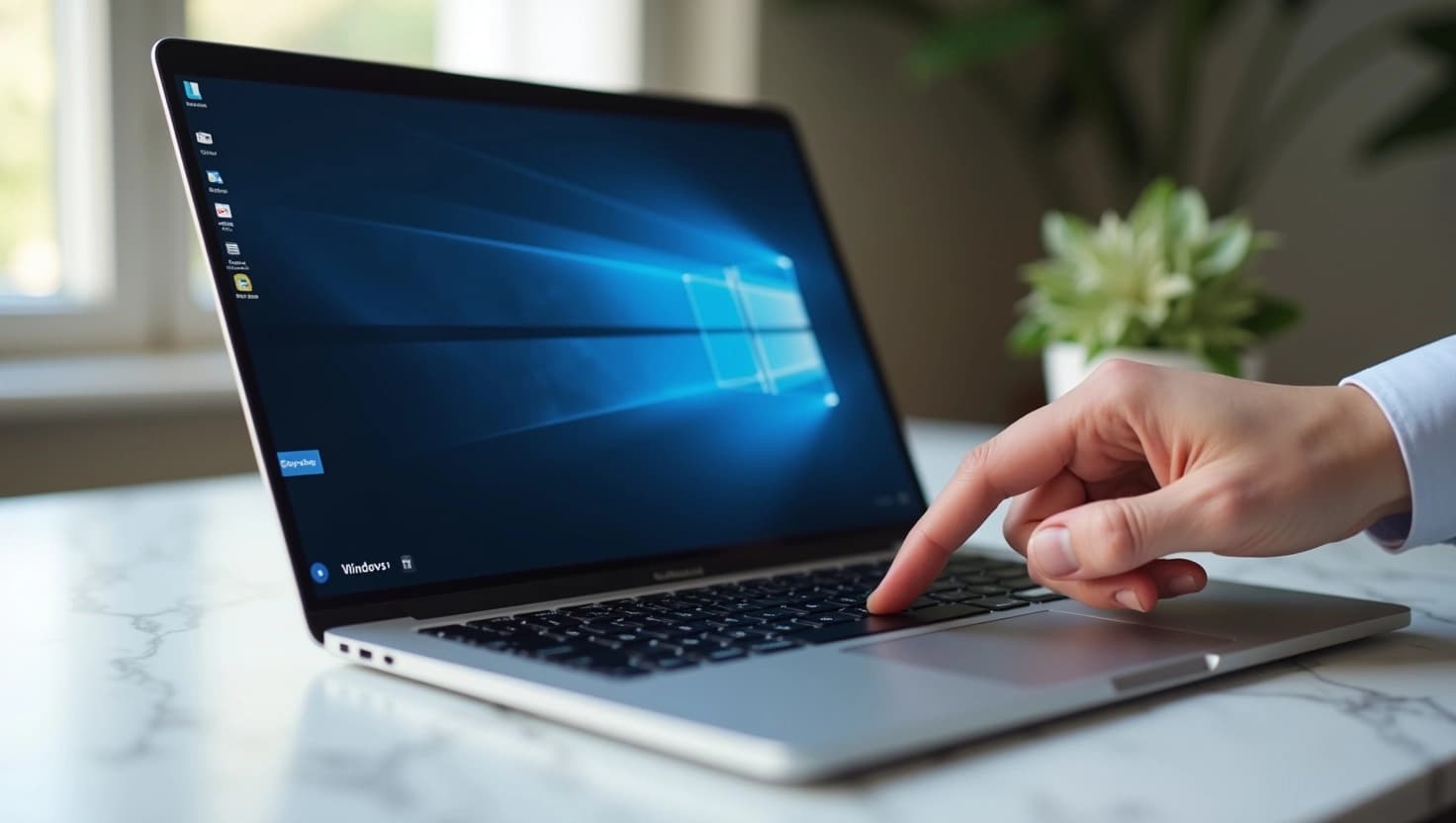
Knowing how to take a screenshot on Windows 11 is one of the most essential productivity skills for any PC user. Whether you’re capturing a bug, saving a receipt, or sharing content, Windows 11 gives you multiple powerful ways to do it.
This complete guide covers every method — from the classic print screen Windows 11 shortcut to the modern Snipping Tool Windows 11. Need a genuine Windows 11 license? Get one instantly at SoftwareInStore at the best price.
5 Ways to Screenshot on Windows 11
Method 1 — PrtScn Key: Fastest Clipboard Copy
Shortcut: PrtScn
The fastest way to take a screenshot Windows 11 — press PrtScn and the image copies to your clipboard.
- Press the PrtScn key on your keyboard
- Open Paint, Word, or any image editor
- Press Ctrl + V to paste
- Save as PNG or JPG
💡 Note: This method copies to clipboard only — no automatic file save.
Method 2 — Windows + PrtScn: Auto-Save
Shortcut: ⊞ + PrtScn
The most popular Windows 11 screenshot shortcut for auto-saving — the screen dims briefly, then the file appears automatically.
- Press Windows key + PrtScn simultaneously
- Screen dims briefly — screenshot saved!
- Find it: This PC → Pictures → Screenshots
Method 3 — Snipping Tool: Most Powerful
Shortcut: ⊞ + Shift + S
The Snipping Tool Windows 11 is the most flexible option — capture any area, shape, or single window and annotate too.
- Press Windows + Shift + S
- Or search “Snipping Tool” in the Start Menu
- Choose mode: Rectangle, Window, Full Screen, or Freeform
- A notification appears — click to edit and save
✅ Pro Tip: The Snipping Tool Windows 11 supports timed screenshots — perfect for capturing dropdown menus or tooltips.
Method 4 — Alt + PrtScn: Active Window Only
Shortcut: Alt + PrtScn
This screenshot shortcut Windows 11 captures only the active window — perfect when you don’t want to show your entire desktop.
- Click on the window you want to capture
- Press Alt + PrtScn
- Paste into Paint or any editor (Ctrl + V)
Method 5 — Xbox Game Bar: For Gamers
Shortcut: ⊞ + G
Taking a screenshot on Windows 11 while gaming? Use the Xbox Game Bar — it works even in fullscreen games.
- Press Windows + G to open Game Bar
- Click the Camera icon or press Win + Alt + PrtScn
- Find at: This PC → Videos → Captures
Quick Comparison Table
| Method | Shortcut | Auto-Save | Best For |
|---|---|---|---|
| PrtScn | PrtScn | ✗ No | Quick clipboard copy |
| Win + PrtScn | ⊞ + PrtScn | ✓ Yes | Regular screenshots |
| Snipping Tool | ⊞ + Shift + S | ✓ Yes | Custom area / annotate |
| Alt + PrtScn | Alt + PrtScn | ✗ No | Active window only |
| Game Bar | ⊞ + G | ✓ Yes | Gaming screenshots |
Still on Windows 10?
Upgrade to Windows 11 Pro to access the full Snipping Tool experience, AI features, and better performance. Get a genuine license at the best price. Get Windows 11 Pro — Instant Delivery
Related Articles
- How to Create a Microsoft Account — Full Guide
- Office 2024 vs Office 2021: What’s the Difference?
- Office 2026 Release Date — What Microsoft Has Planned
© 2026 SoftwareInStore — Genuine Microsoft licenses at the best prices. Instant delivery.