How to Create a Microsoft Account — Complete Step-by-Step Guide 2026
How to Create a Microsoft Account — Complete Step-by-Step Guide 2026
Whether you’re setting up a new PC, downloading Office, or accessing Xbox services, knowing ==how to create a Microsoft account== is essential. A Microsoft account is your single sign-in for the entire Microsoft ecosystem — completely free and ready in minutes.
This guide walks you through ==creating a new Microsoft account== step by step, on any device. Once you have your account, activate your Windows or Office license instantly at SoftwareInStore.
What You Get with a Microsoft Account
A free ==Microsoft account== gives you access to:
- Windows activation and settings sync across devices
- Microsoft 365 / Office apps (Word, Excel, PowerPoint)
- OneDrive — 5 GB free cloud storage
- Xbox Game Pass and gaming services
- Microsoft Store for apps and games
- Outlook — professional email with your own address
- Teams — video calls, messaging, and file sharing
- Access to your Windows download history via your account
How to Create a Microsoft Account — 7 Steps
Step 1 — Go to Microsoft.com and Click “Sign in”
Visit microsoft.com in your browser. Click the Sign in button at the top right of the page to access the Microsoft sign-in portal.
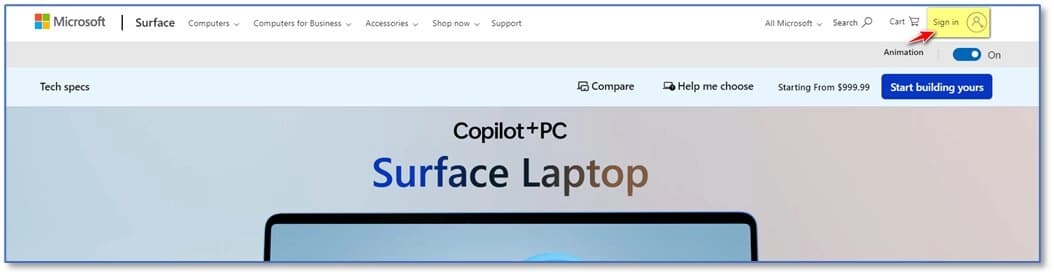
Click the “Sign in” button at the top right of Microsoft.com to get started
Step 2 — Click “Create one!” to Start
On the Sign in page, you will see “No account? Create one!” — click “Create one!” to begin the ==Microsoft account== creation process.
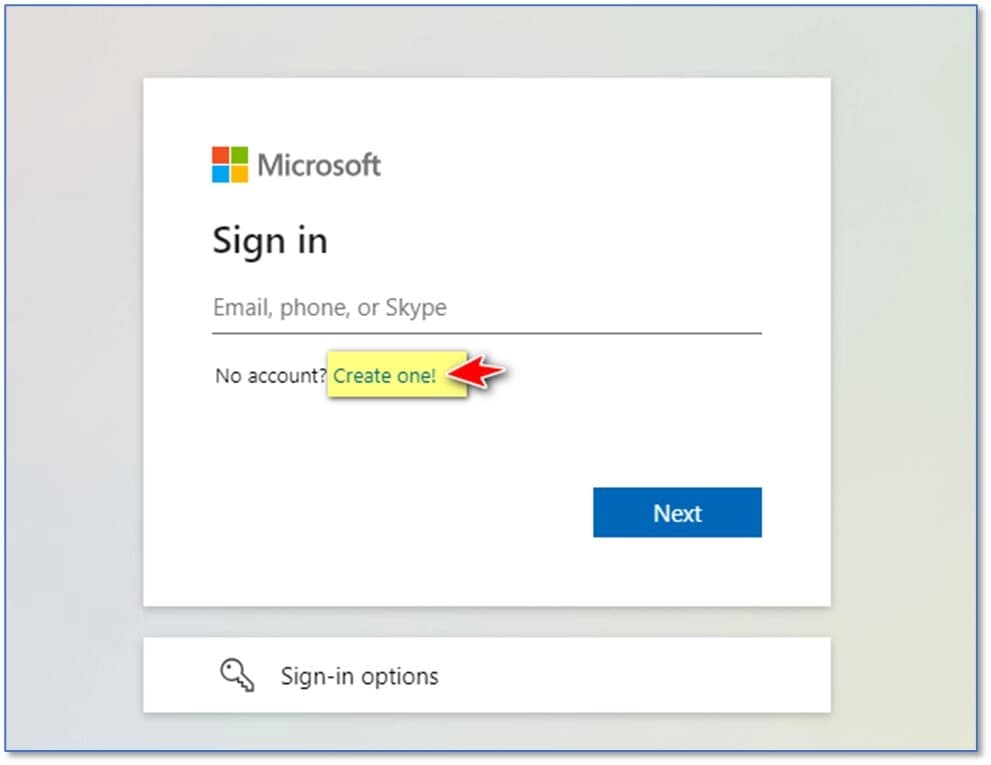
Click “Create one!” below the email field on the Sign in page to start the registration
Step 3 — Choose Your Email Address
You have two options for your ==creating a new Microsoft account==:
- Use your existing email (Gmail, Yahoo, etc.) — type it in the left field and click Next
- Get a free new @hotmail.com address — click “Get a new email address” on the right
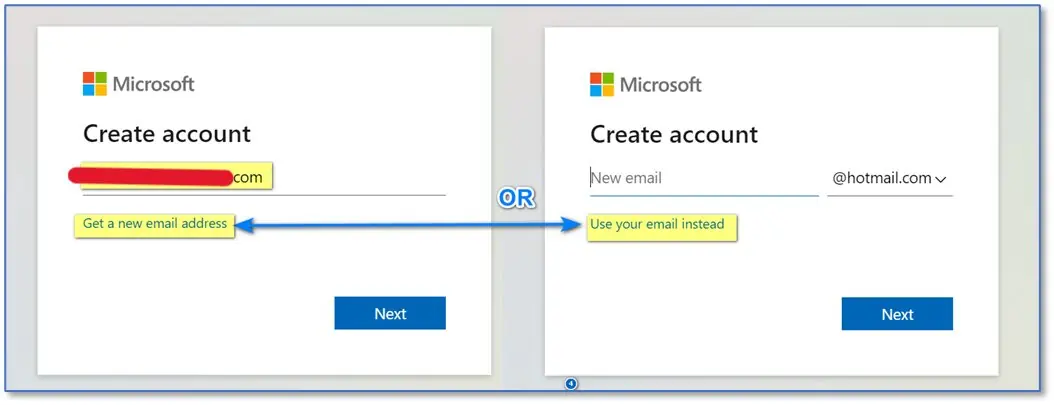
Use your existing email or create a free @hotmail.com address, then click Next
Step 4 — Create a Strong Password
Enter the password you want to use for your ==Microsoft account==. Use at least 8 characters with a mix of uppercase, lowercase, numbers and symbols. Check “Show password” to verify it, then click Next.
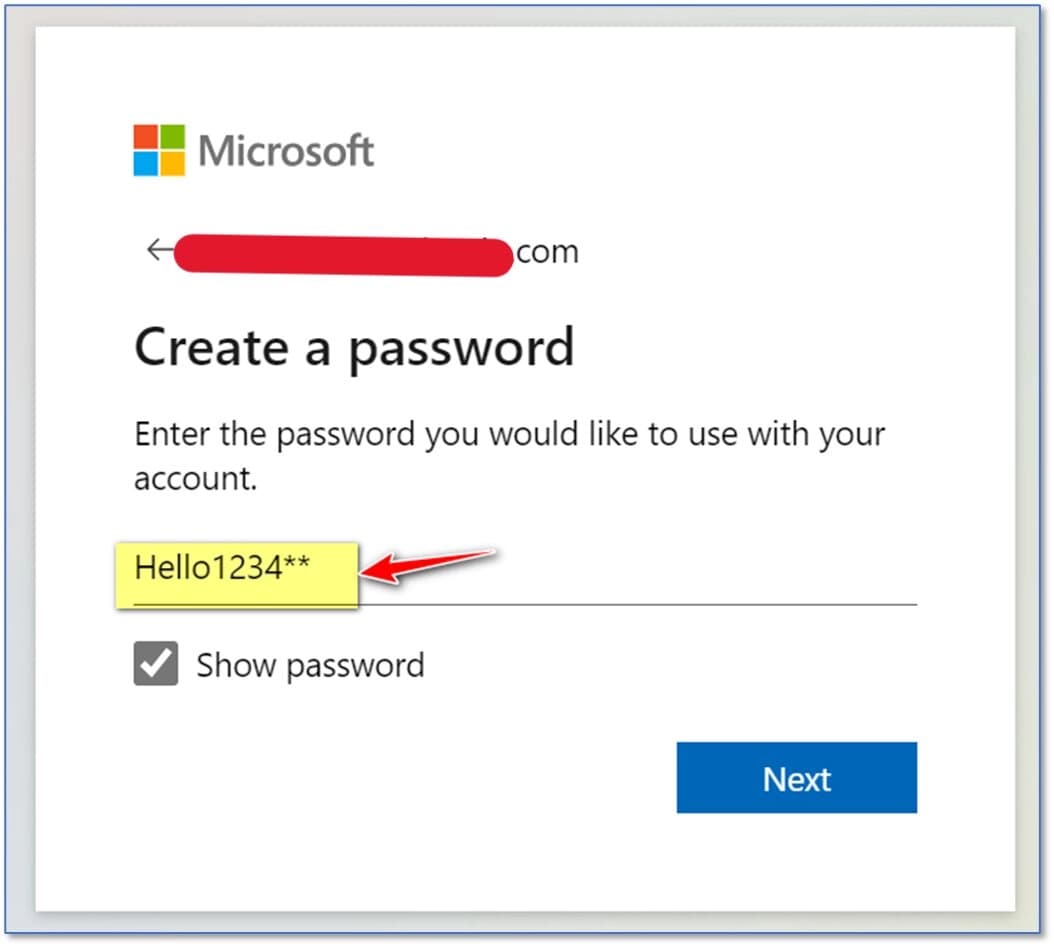
Enter a strong password combining letters, numbers and symbols, then click Next
Step 5 — Verify Your Email Address
Check your inbox — Microsoft sends a 6-digit security code to your email. Open the email from the Microsoft account team, copy the code, paste it into the “Verify email” field on the right side, then click Next.
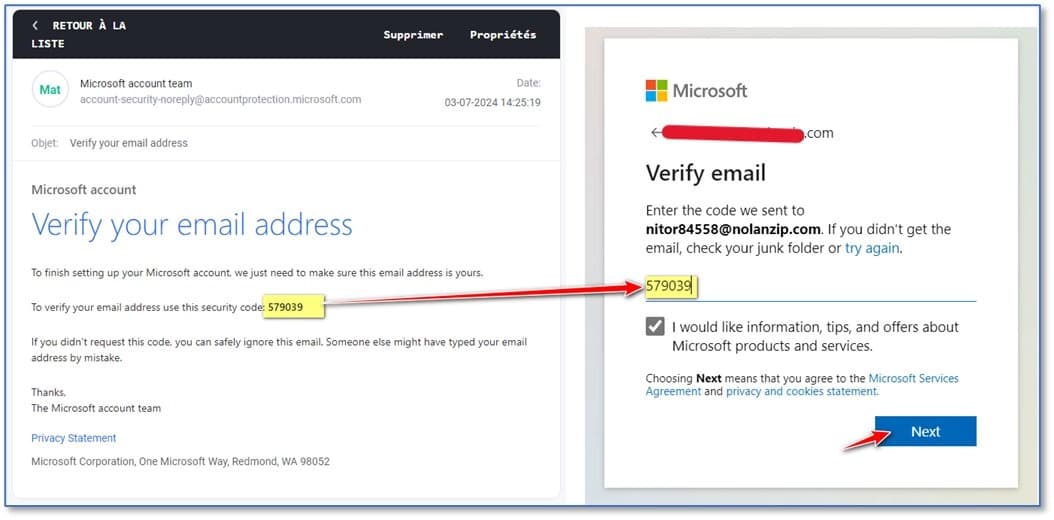
Copy the security code from your email inbox and enter it in the verification field, then click Next
Step 6 — Add Your Name & Date of Birth
Microsoft now asks for two final details:
- “What’s your name?” — enter your First name and Last name, click Next ①
- “What’s your birthdate?” — select your Country/Region and Birthdate, click Next ②
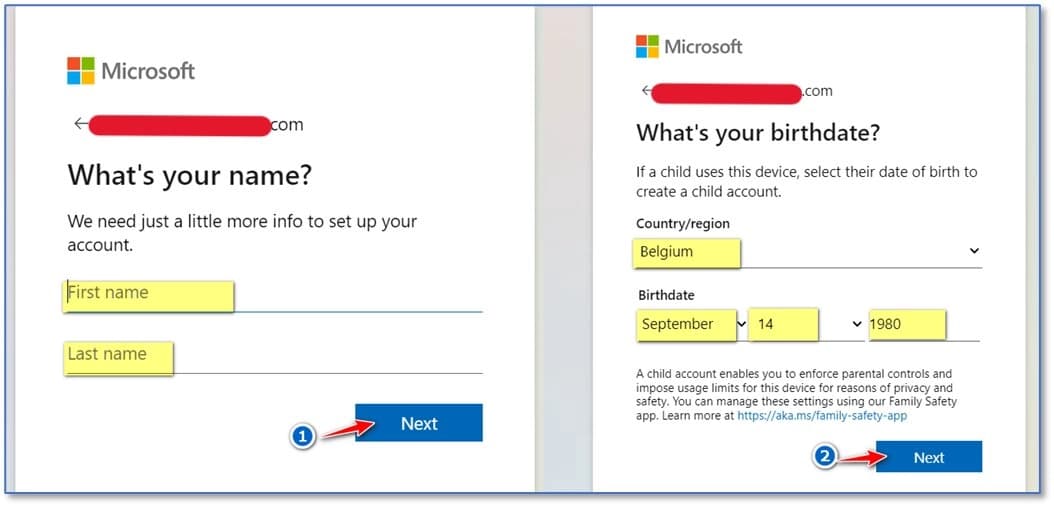
Enter your first name, last name, country/region and date of birth, then click Next twice
Step 7 — Complete the Final CAPTCHA Check
As a last security step, Microsoft asks you to “Help us beat the robots”. Click Next to load the puzzle, solve it quickly, and your ==Microsoft account== will be fully activated.
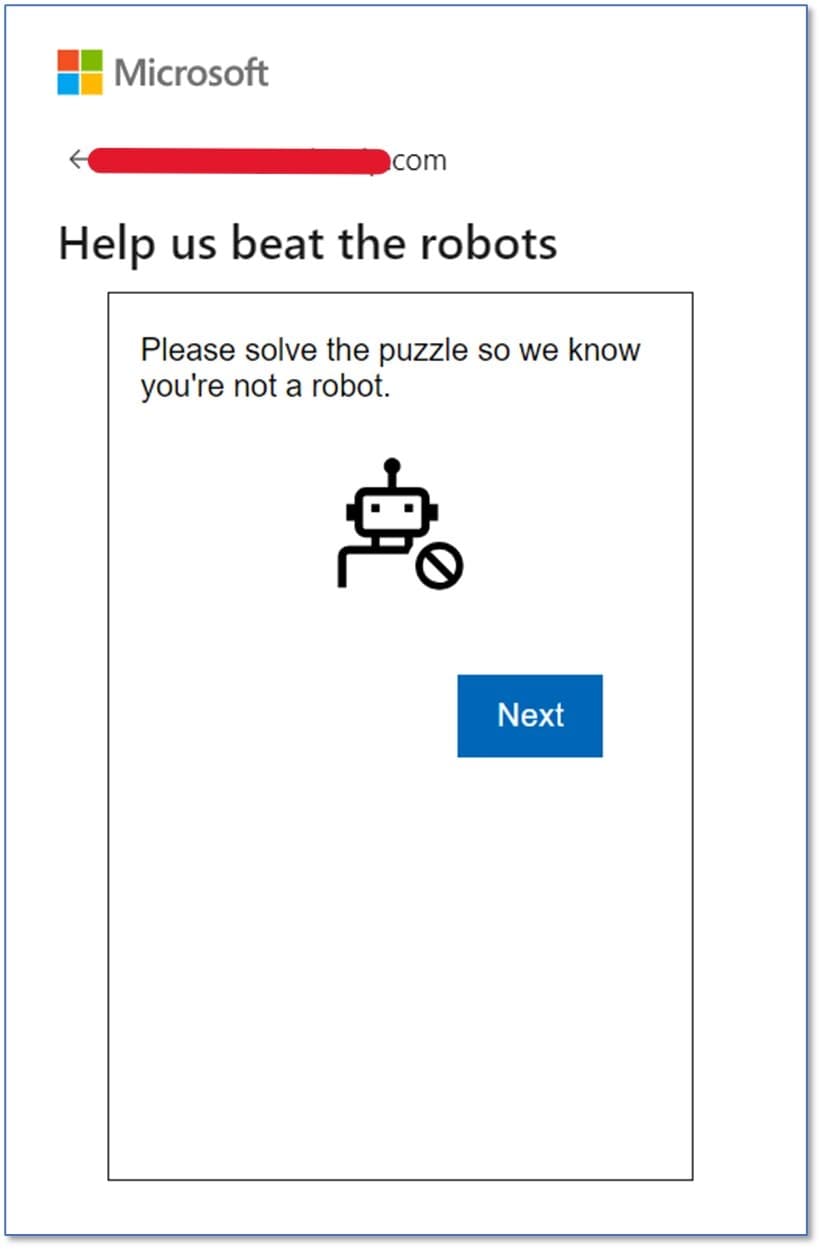
Solve the quick security puzzle — this is the final step before your account is fully active
Your ==Microsoft account== is now fully set up and ready to use!
How to Sign Up for Microsoft Account on Mobile
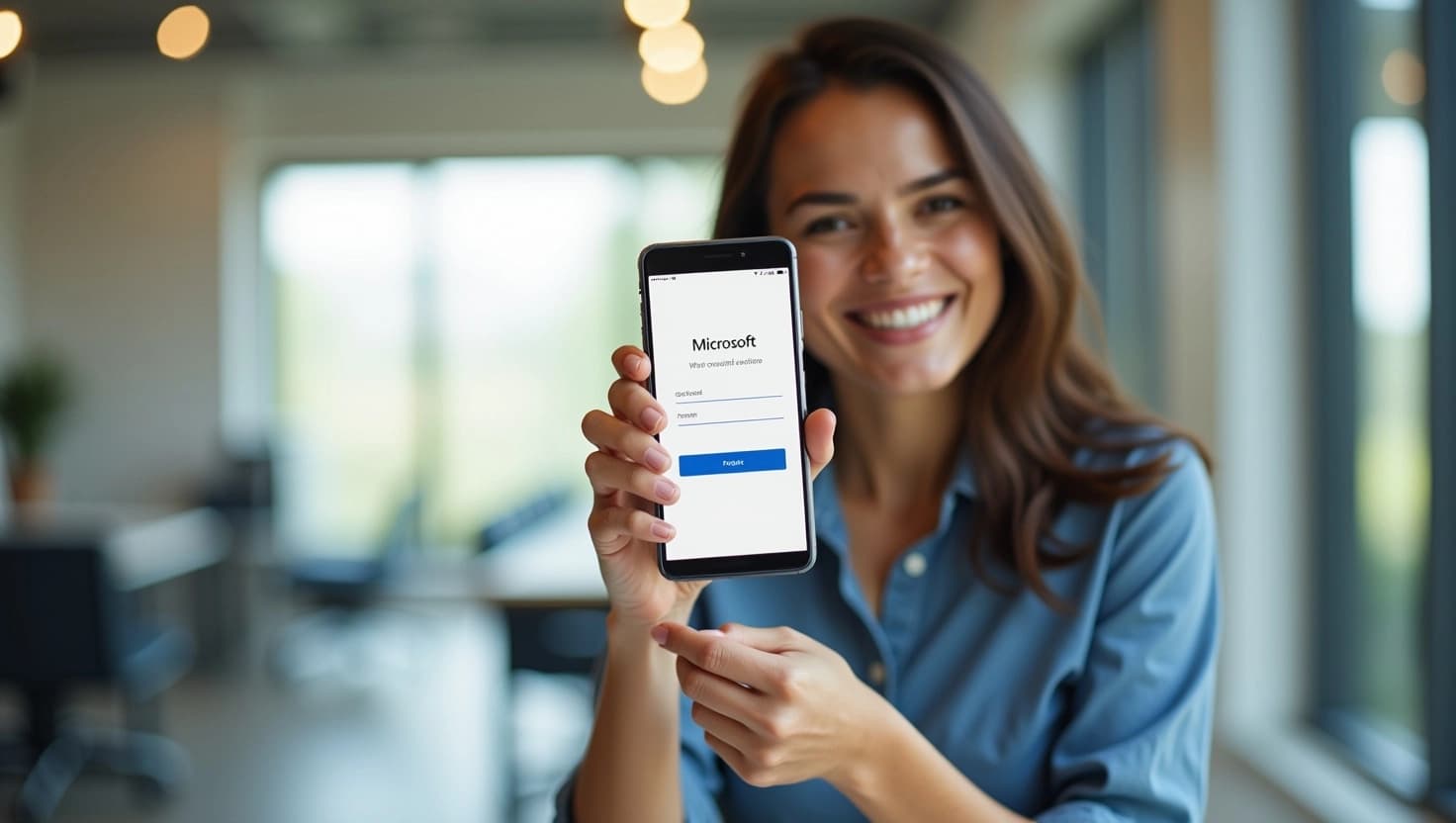
The process for ==how to sign up for Microsoft account== on iPhone or Android:
- Download Microsoft Authenticator from App Store or Google Play (free)
- Tap “Add account” → “Personal account”
- Follow the same 7 steps as above — your account works across all devices instantly
Pro Tip: Once you ==create a Microsoft account==, you can use it to activate any Windows or Office license purchased from SoftwareInStore — just go to office.com/setup or microsoft.com/activate and enter your product key.
Troubleshooting Common Issues
| Problem | Solution |
|---|---|
| Email already in use | Try signing in instead, or use a different email |
| Verification code not received | Check spam/junk folder, or request a new code |
| Password not accepted | Use 8+ characters with mixed types — no common words |
| Account locked | Use Microsoft recovery: account.live.com/acsr |
| Can’t sign in on Windows | Settings → Accounts → Your info → “Sign in with Microsoft instead” |
Already Have Your Microsoft Account?
Activate your genuine Windows Operating Systems or Microsoft Office license instantly. Best prices, instant email delivery — no subscription ever. Shop Windows & Office Licenses
Related Articles
- Office 2024 vs Office 2021: What’s the Difference?
- How to Take a Screenshot on Windows 11
- Windows 12 Release Date — Everything We Know
- Office 2026 Release Date — What We Know